

Agents are available in beta for Professional, Business and Enterprise workspaces. Admins can enable this feature for their workspace in Settings.
Overview
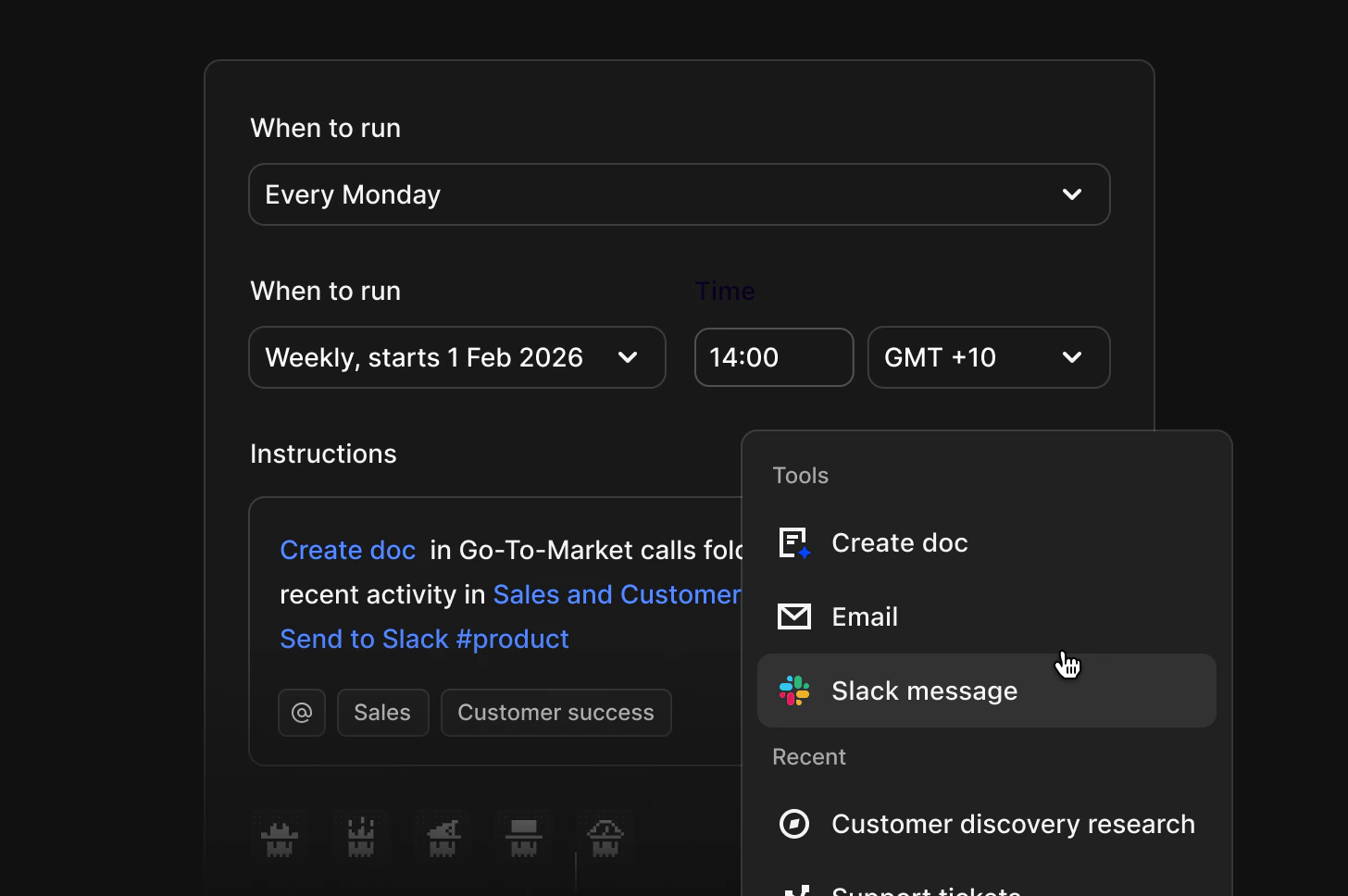
Meet Agents, your autonomous assistants to help you complete tasks in the background. Prompt your instructions and agents can do anything from continuously monitor feedback, generate shareable docs, to notify via email or your team on Slack, and with more tools to come!How agents work
Agents (currently in beta) can:- Analyze content across folders, projects and channels and summarize insights
- Summarize insight as a doc, or send an email and Slack notification
Creating an agent
A new Dovetail experience is coming on March 31, 2026. We’re updating the app’s navigation and structure. You may notice changes, as some features appear in new locations.
- Create an agent from the
+ Newmenu or in a folder or project, and give it a name. - Configure when to run
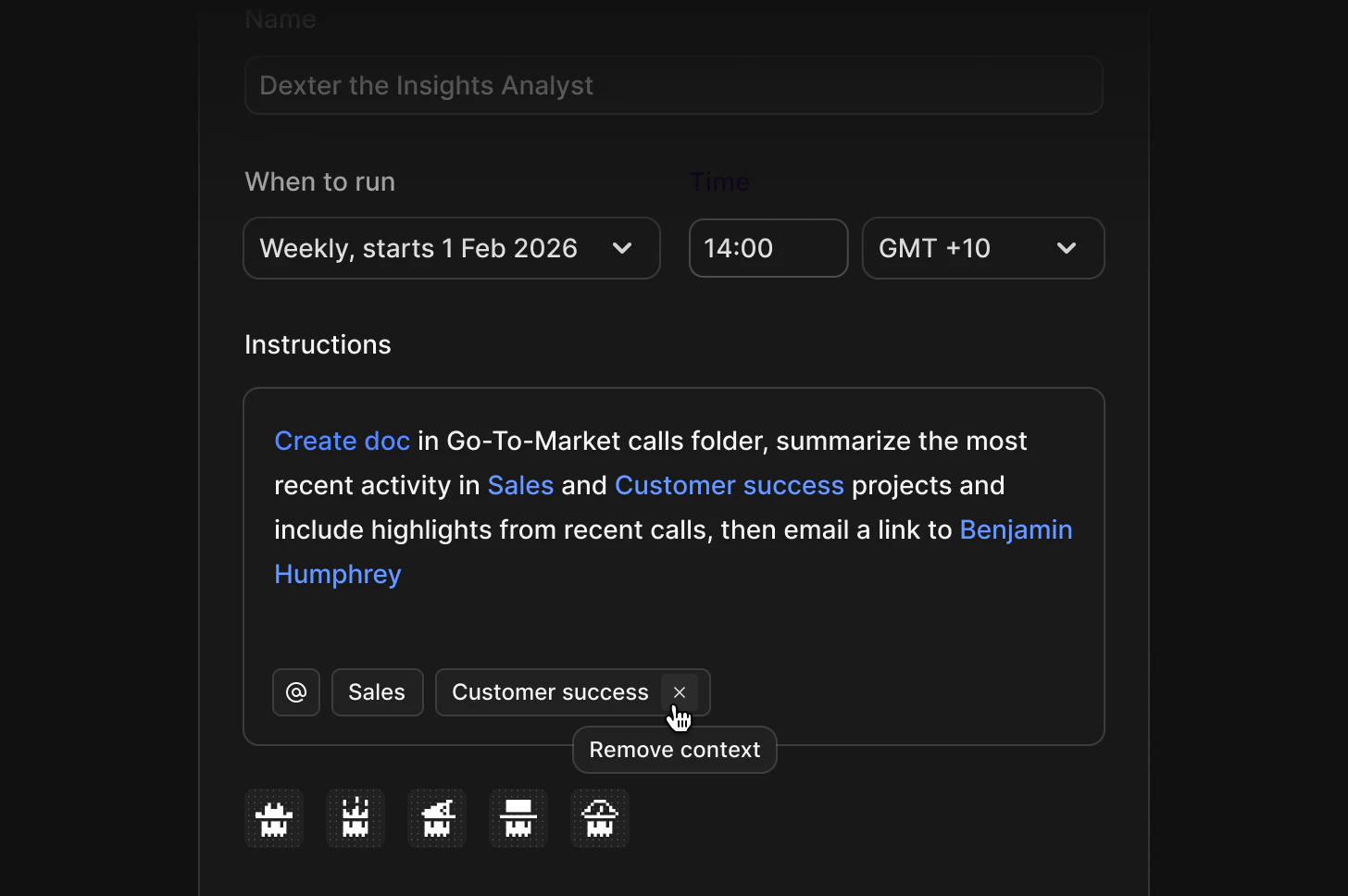
- Choose how often your agent runs and set the run time.
- Prompt instructions
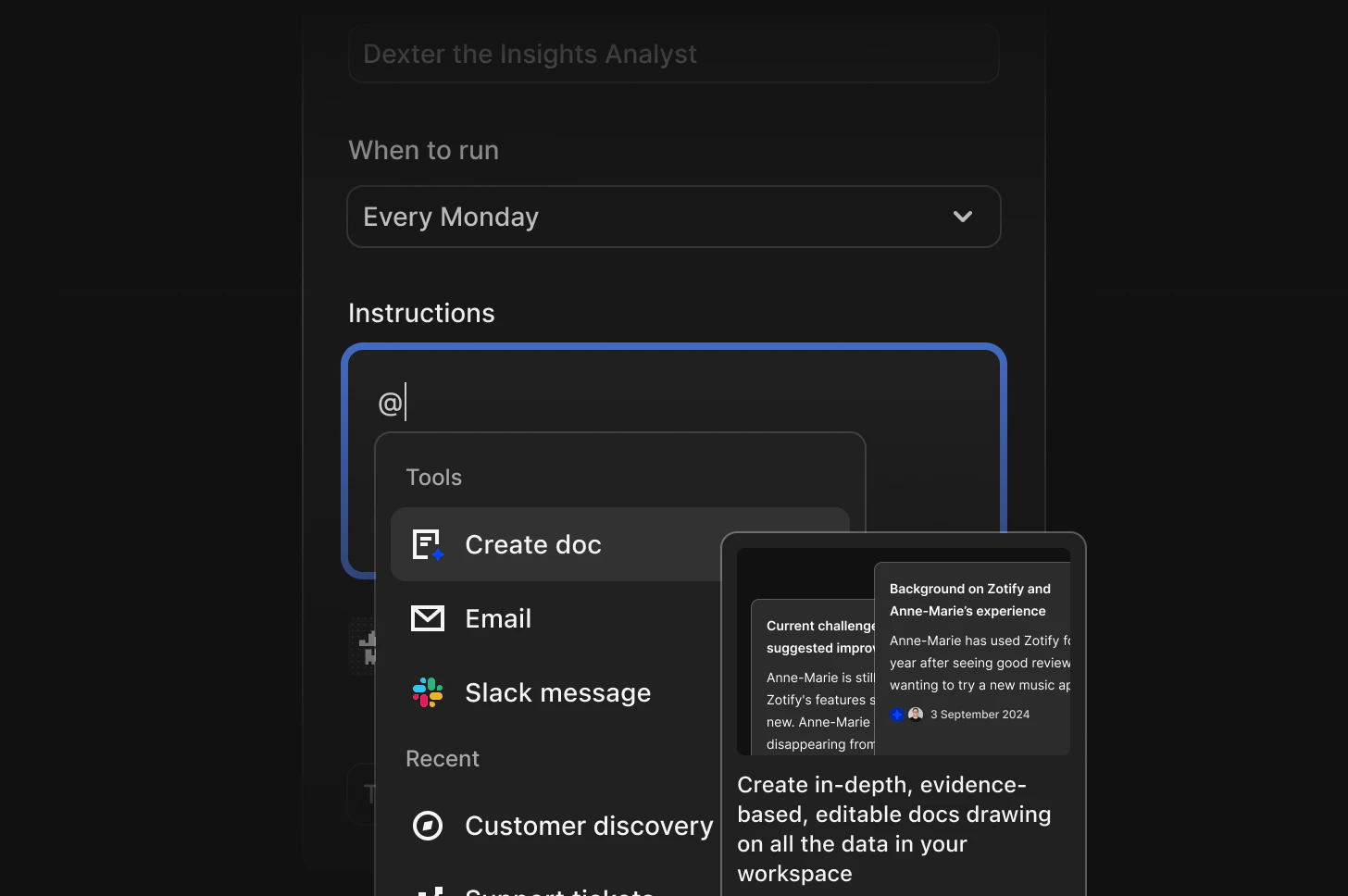
- Start writing to instruct the agent, or type / or click on the @ menu to explicitly reference tools, include context or mention someone.
- If you’re asking the agent to write a doc, you can also include the doc structure in your prompt.
- Use explicit tool calls. Selecting
Create docfrom the menu is more explicit than just typing create doc. It helps the agent know exactly what to execute. - Specify context by referencing a folder, project or channel. This helps the agent focus on relevant sources when searching and analyzing information.
- Keep the prompt short and concise. If you want to summarize from different data sources or context, create separate agents for more focused and more relevant results.
- Finally, select an avatar to represent your agent.
Sending an agent
For email notifications, Agents can only send to your Dovetail workspace members for security reasons. Users can hold any role.For Slack notifications, ensure that Dovetail app is installed and added to the channel you want Agent notifications to appear in. Agents can send to private Slack channels and DMs. For DMs, the recipient must be part of your Dovetail workspace and can be a Viewer seat. The recipient must have authenticated their Slack connection to appear in the agent drop down.
Testing an agent
You can test your prompt anytime in the agent dialog. Testing doesn’t save anything permanently, it’s just a way to preview how your prompt would work.- At the bottom of the agent dialog, select
Testto test your agent. - This opens up a chat window and the agent will start “thinking”. This may take a couple minutes. Depending on your prompt, the test will run the full workflow.
- If you’ve asked to
Create doc, you will see a preview of that output in the chat response - If you’ve asked for an
Emailnotification, you will receive a test email. - If you’ve asked for a
Slacknotification, you will receive a test notification in your Dovetail app and assigned channel. Note - you must add the Dovetail app to the Slack channel you want the notification in. - Testing Slack notifications aren’t supported in testing yet and will only run once the agent is created or updated. You can also ask follow-up questions in chat and test how the agent handles the prompt.
Edit or view an agent
Depending on your permissions, you can view or edit agents you’ve created or have access to.- To edit an agent you’ve created, go to
Your workor theBrowsepage. - Select the agent to open the edit dialog. If you only have view-only permissions, you can see who created the agent but won’t be able to make changes.
Pause and resume an agent
Agents can be paused or resumed once they have been created and saved.- To pause an agent, open it and select Pause agent from the ··· menu in the top right corner. The agent status will update from Active to Paused.
- To resume, open the paused agent and select Resume agent from the same menu.
Delete an agent
- To delete any agents you’ve created, you can access them from
Your WorkorBrowsepage. - From there, click
Move to trash. The deleted agent will be available to restore in workspace trash for up to 30 days.
Permissions and sharing
Manage and change permissions for each agent by selecting the ⋯ menu onYour Work or Browsepage → Share in the list view. You can manage permissions here, or copy the link to share your agent.