

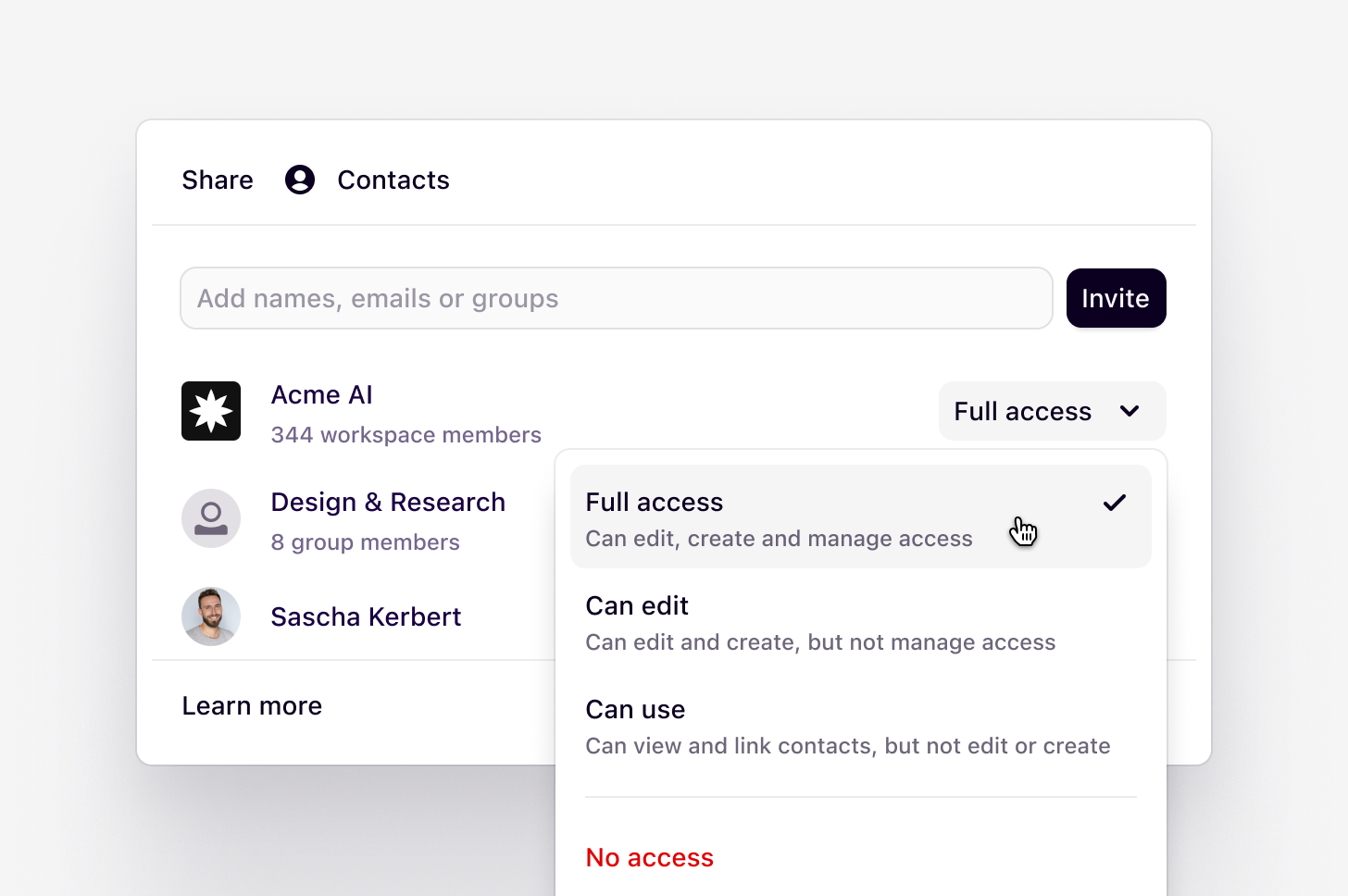
Only available on Business and Enterprise plans.Only users with Full access to a folder or project can adjust its access controls.
Overview
We’ve made it easy to effortlessly share, edit, and collaborate on projects with your team in Dovetail. With the ability to assign various access levels on folders, projects, workspace tag boards, and workspace field groups, you have full control over how others can access and interact with your data.Share menu
You can share links, invite new users, and manage access to your workspace directly from the share menu on any object, without having to navigate to the users page.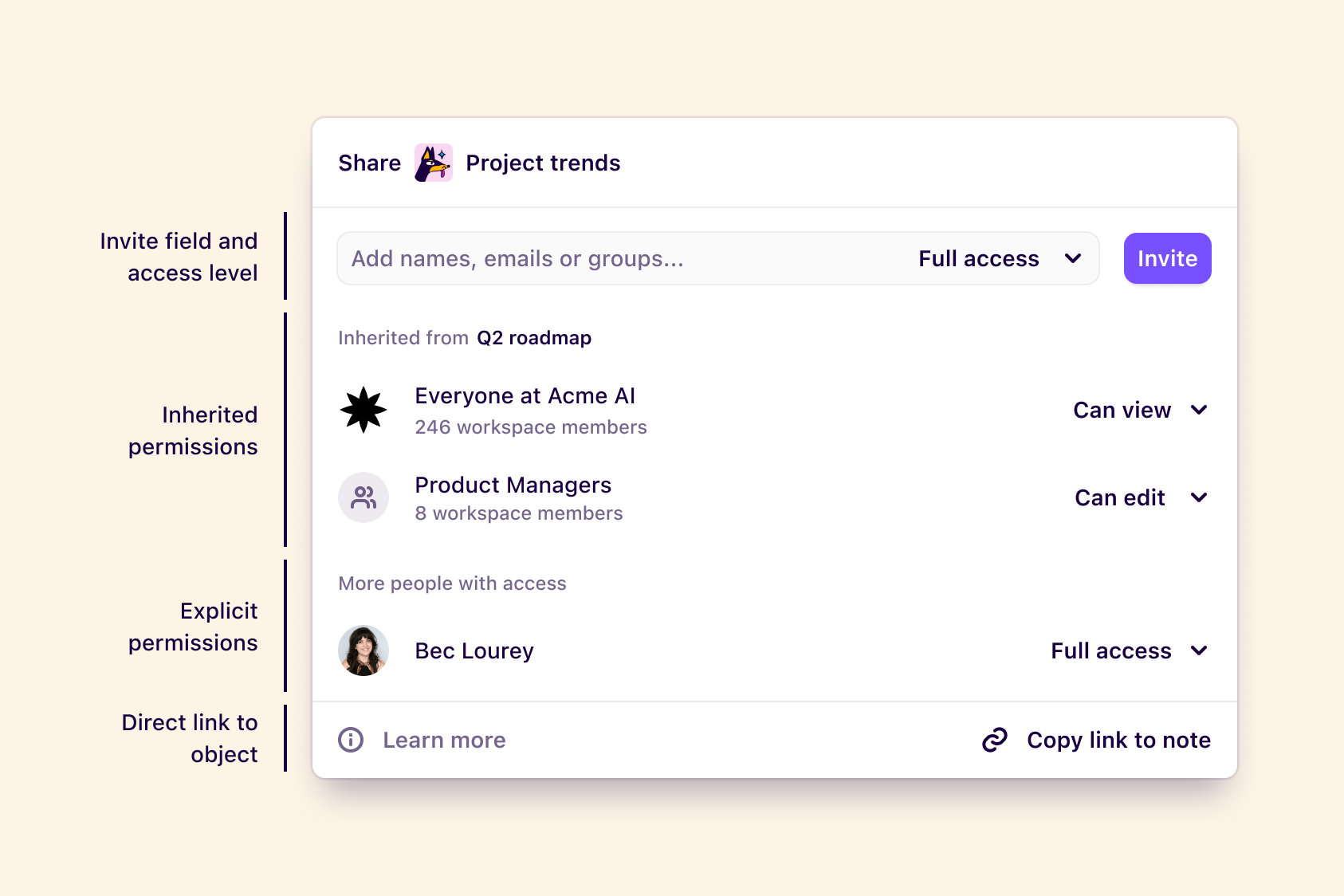
- Invite field and access level → Assign access to current users or groups, and invite new users to your workspace.
- Inherited permissions → Users who have inherited permissions from the parent folder.
- Explicit permissions → Users who have been explicitly granted higher access to this project.
- Direct link to object → Copy a direct link to the object.
Access levels
You can assign a different level of access for every user or group that you share with. This is helpful if:- You want only a few people to edit a project while everyone else reads it.
- You want some projects to only be visible to a specific team.
- You want to share your findings with stakeholders, but not let them view your raw data.
| Permissions | Full access | Can edit | Can view | No access |
|---|---|---|---|---|
| View and comment | ✔ | ✔ | ✔ | |
| Create, edit and analyze data | ✔ | ✔ | ||
| Invite to folder / projects | ✔ | |||
| Toggle public access for insights | ✔ | |||
| Manage folder / project settings and permissions | ✔ |
Invite new users through the share menu
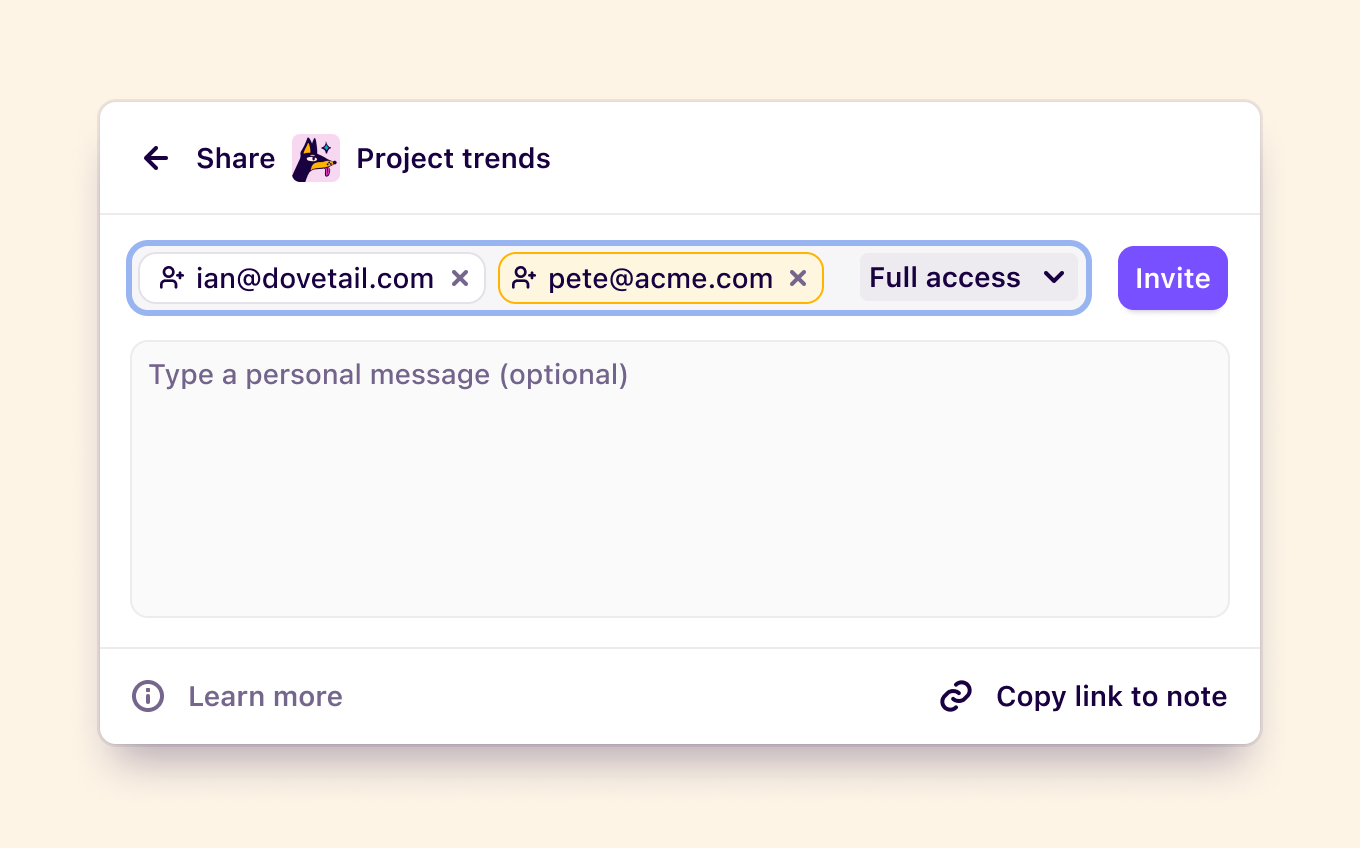
If you want to share an object with someone outside of your workspace, you can enter their email into the invite field, and they’ll receive an email invitation to join your workspace. If you invite new users outside of your verified email domain, their email will appear in yellow as a warning. By granting the following access levels to new users, they will automatically be assigned the following role in your workspace:- Full access → will invite a Contributor role.
- Can edit → will invite a Contributor role.
- Can view → will invite a Viewer role.
Restrict, expand, and restore inherited permissions
Permissions granted to users, groups, or the entire workspace at a folder level will be applied to the folders, channels, and projects contained within it. However, these inherited permissions can be further restricted or expanded upon by assigning explicit permissions to the child folder or project. When you restrict access to a project, a Restore button will appear at the bottom of the share menu. Use it to revert the permissions so they inherit from the parent folder again.Users always inherit their highest assigned access levelIf a user is assigned an access level that is lower than the workspace role, they will inherit the permissions of whichever is higher.
Assign access to Folders, Projects, Channels, and Workspace tags and fields
Users with Full access can control the visibility of your folders, projects, and channels by utilizing share settings. Ensure your users view and interact with your content exactly as you want by expanding or restricting their access at any time.Manage access for a Folder
You can assign default permissions at the folder level that will be inherited by all projects and channels nested within it. You can also restrict or expand access for users, groups, or the entire workspace. You must have Full access to the folder in order to update the share settings. To do this, click ••• next to the folder and select Share From there, determine the default access level for your workspace or assign specific users or groups their level of accessManage access for a Project
You can assign more granular permissions to projects by restricting or expanding pre-existing access levels for users, groups, or the entire workspace. You must have Full access to the project in order to update the share settings. To do this, open your project and click Share in the top-right corner From there, assign users or groups access levels and confirm by selecting InviteManage access for a Channel
You can assign more granular permissions to channels by restricting or expanding pre-existing access levels for users, groups, or the entire workspace. You must be a Manager or Contributor and have Full access to the channel in order to update the share settings. To do this, open your channel and click Share in the top-right corner. From there, assign users or groups levels of access and confirm by selecting InviteManage access for workspace tags
You can assign more granular permissions to workspace tags by restricting or expanding pre-existing access levels for users, groups, or the entire workspace. You must have Full access to the tagboard in order to update the share settings. To do this, go to ⚙️ Settings → Tags From there, open a tagboard and click Share in the top-right corner Assign users or groups access levels and confirm by selecting InviteManage access for workspace fields
You can assign more granular permissions to workspace fields by restricting or expanding pre-existing access levels for users, groups, or the entire workspace. You must have Full access to the field group in order to update the share settings. To do this, go to ⚙️ Settings → Fields From there, open a field group and click on Share in the top right corner Assign users or groups access levels and confirm by selecting InviteAccess private content after a user is removed from your workspace
Dovetail will automatically update permissions on relevant objects if there are no remaining users with Full access. The updated permissions grant all workspace admins who are also managers Full access, so that they can continue to manage the content. If there are no workspace admins who are also managers, all managers will gain access.FAQs
What happens if the only member of a user group with Full access is removed?
What happens if the only member of a user group with Full access is removed?
If a user is deleted and they were the sole member of a user group with access to an object, Dovetail will automatically update permissions following the same behavior outlined above. This ensures that the content remains accessible and manageable.Alternatively, a workspace admin can manually add another user to the user group with access. Once added, that user will be able to manage the permission settings for the associated folders, projects, channels, or workspace tags and fields.